
Protect the site and invite players
Cloudflare Access (free for 50 users) asks every visitor for an allowed email before the game loads. Each email gets its own saves. Access is part of Cloudflare Zero Trust, which asks for a payment method even on its Free plan (what it costs).
Turn on Access
At the end of the first deploy, choose 1) Cloudflare Access. The toolkit first tries to do it itself through the Cloudflare API: it creates the Access application for the game's address and a policy named after the game that allows your Cloudflare account's email (plus any email in the config's players). This needs a Zero Trust team to exist already and an API token with the Access permissions; the browser login of a terminal run does not carry them, so there it usually falls back to the steps below. With --yes (CI) the API is the only way, and a run that cannot do it stops with exit code 2.
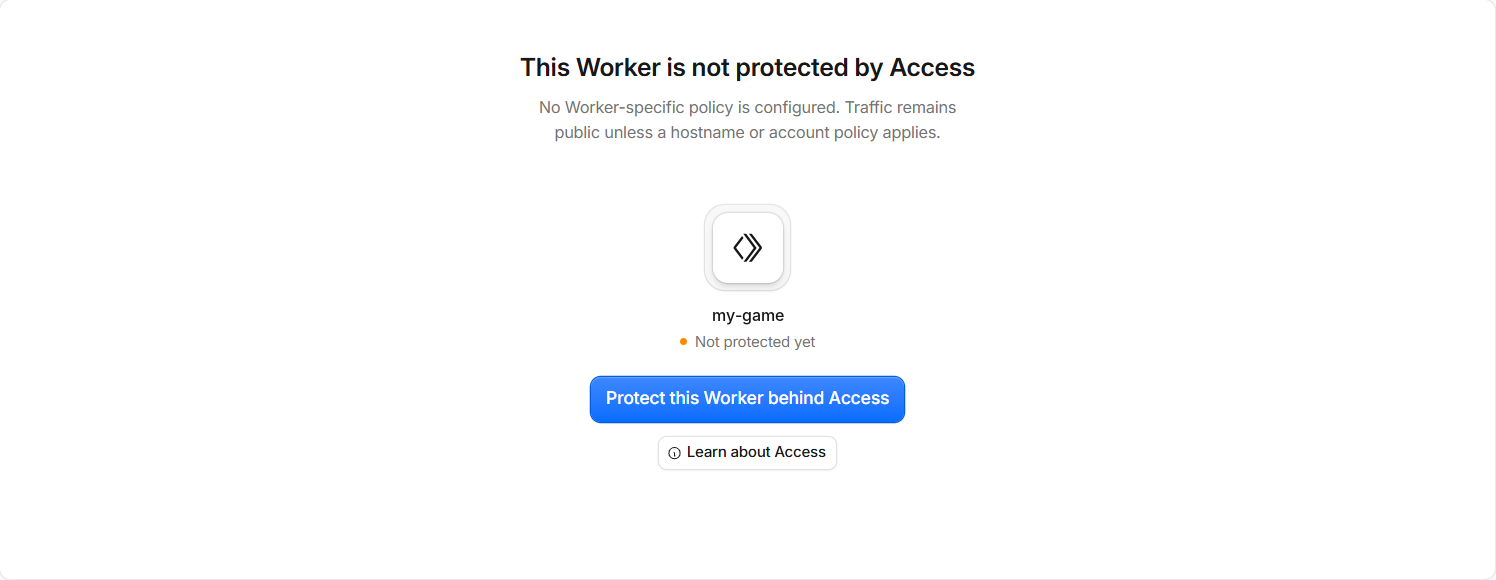
The steps in the dashboard: the toolkit opens the game's Access page in the Cloudflare dashboard (Workers & Pages → the game → Access):
- Select Protect this Worker behind Access.
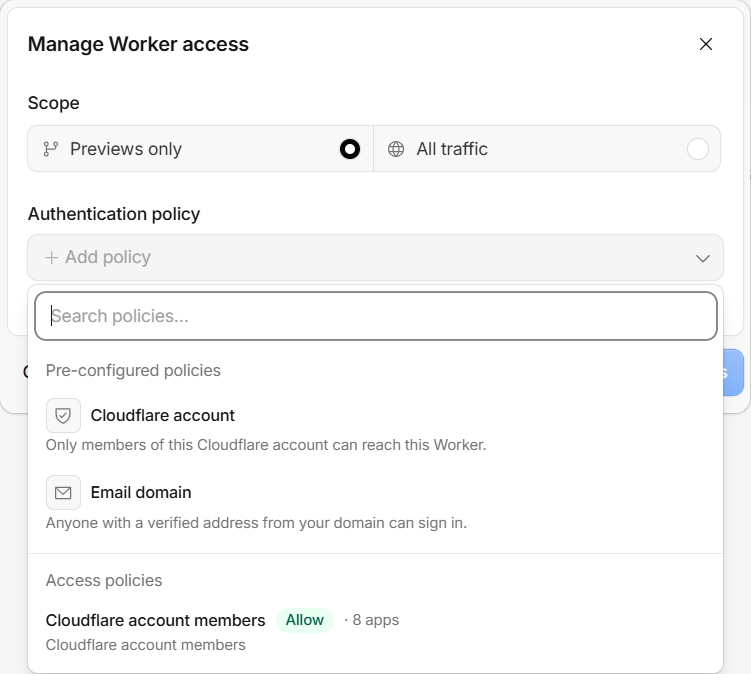
- Scope: choose All traffic. The default, Previews only, protects only preview links and leaves the game itself open.
- Authentication policy → Add policy → Cloudflare account (only your Cloudflare account's email can sign in for now), then Apply Access.
- First time with Zero Trust? Pick a team name, the Free plan and a payment method: see Zero Trust, during the first deploy.
- Back in PowerShell, press Enter. Once Access is detected, the game is published unlocked.
Run the deploy again to repair it: an existing application and policy are reused, and the policy is set back to the emails above.
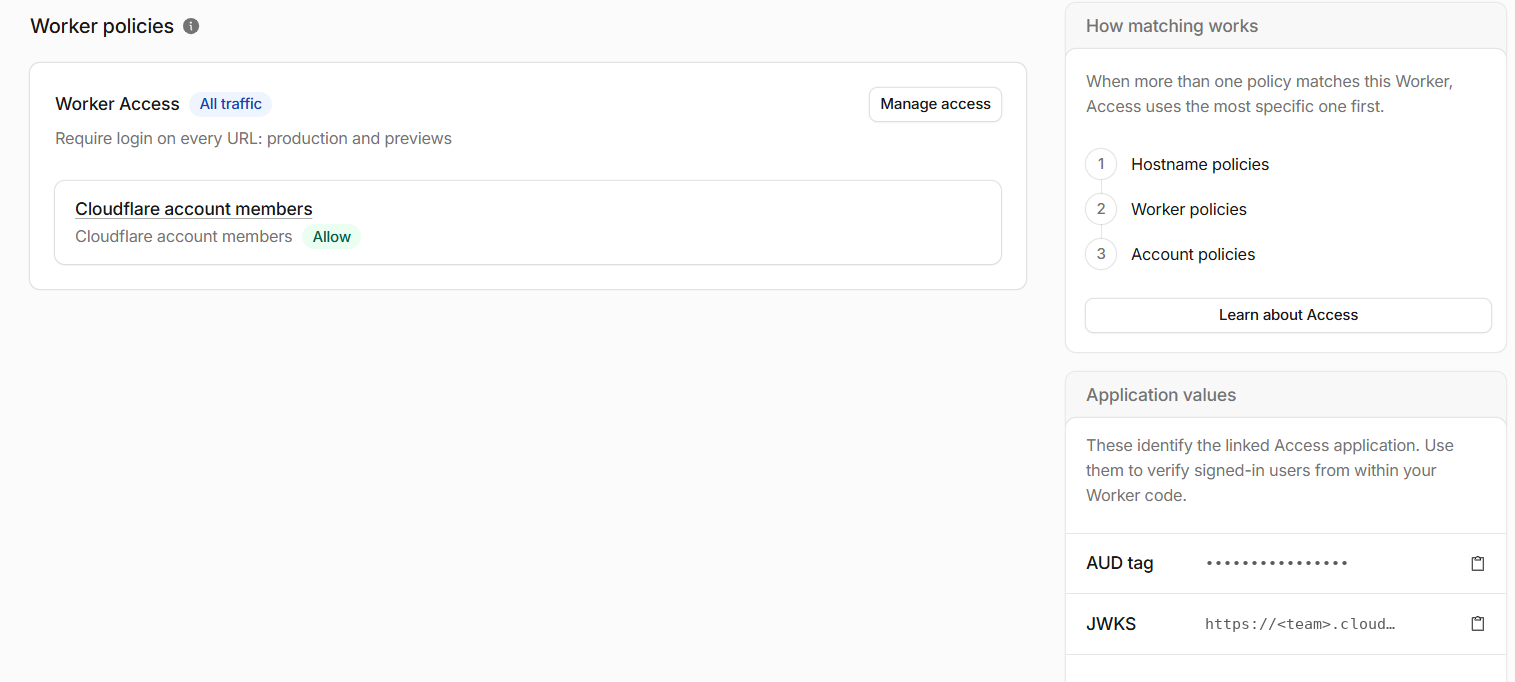
Done right, the page shows Worker Access with the All traffic badge:
It can take a minute; choose Check again if needed. Chose Later? The site stays locked; run the deploy again when ready.
The toolkit does not detect Access
Check that the badge says All traffic, not Previews only (Manage access to change it). Then choose Enter the team domain and AUD manually, with the values from Application values on the right of the game's Access page:
- Team domain: the start of the JWKS URL,
<team name>.cloudflareaccess.com(also in the address bar of the login page). - AUD tag: copy it with the button next to AUD tag.
Invite players
Only your Cloudflare account's email can sign in at first. To let other emails in, give the game a policy that lists them:
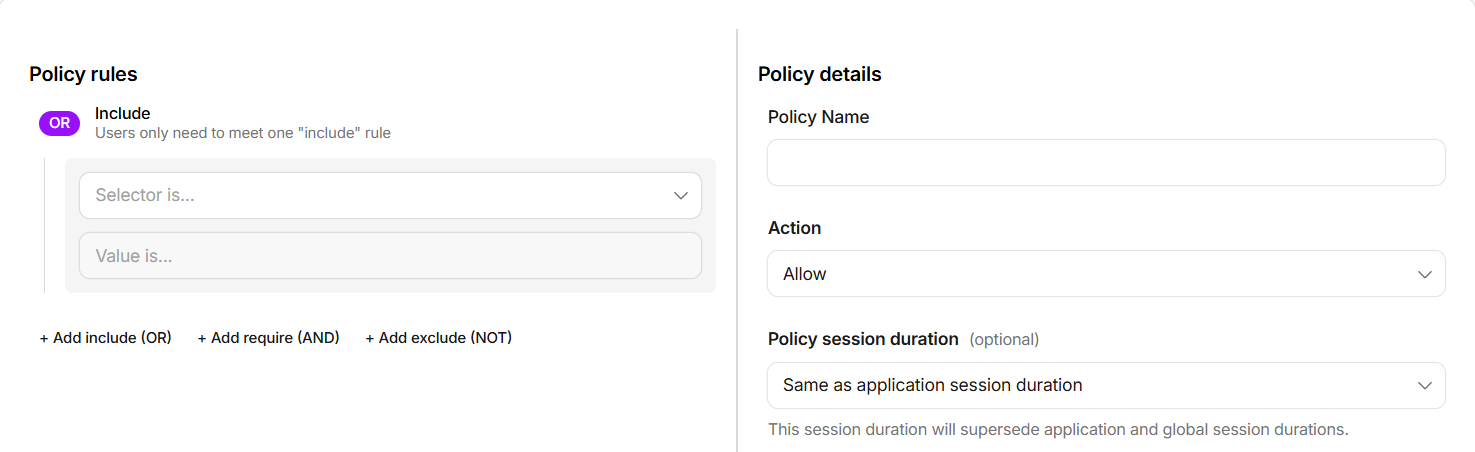
Zero Trust → Access controls → Policies → Reusable policies → Add a policy:
- Policy rules → Include: Selector Emails, Value their emails.
- Policy Name: the game's name. Action: Allow.
- Leave the rest as is, then Save policy at the bottom.
Workers & Pages → the game → Access → Manage access → Add policy → under Access policies, pick the new policy. Keep Cloudflare account too if you want to sign in with your account's email. Apply Access.
To add someone later, edit that policy in Zero Trust (select its name on the game's Access page). Do not add players to Cloudflare account members: other apps of your account use it too.
Players need no Cloudflare account: they get a one-time code by email and sign in as in Open and play. Each game has its own list, and each email its own saves.
Every deploy prints how many emails have saves. Sharing a copy widely is redistribution, so it warns above 5 (above 1 if the creator asked for personal copies).
A public site (no protection)
2) No protection lets anyone with the link play, and everyone shares one set of saves. It is only for games you may redistribute, so the toolkit asks why:
? Why may this game be public?
     1) I made this game, or I publish it for the people who made it
     2) Its creators allow anyone to host it publicly (its license or their written permission says so)
     3) Neither: keep the site locked and use Cloudflare Access instead
Then whether search engines may list it (no by default; otherwise every site sends noindex). A creator's hosting policy can rule this option out.
If Access gets turned off
Every deploy checks. If it says Cloudflare Access is NO LONGER protecting the site!, open the game's Access page and turn it on again, with All traffic.
Next: Update the game