
Menu map
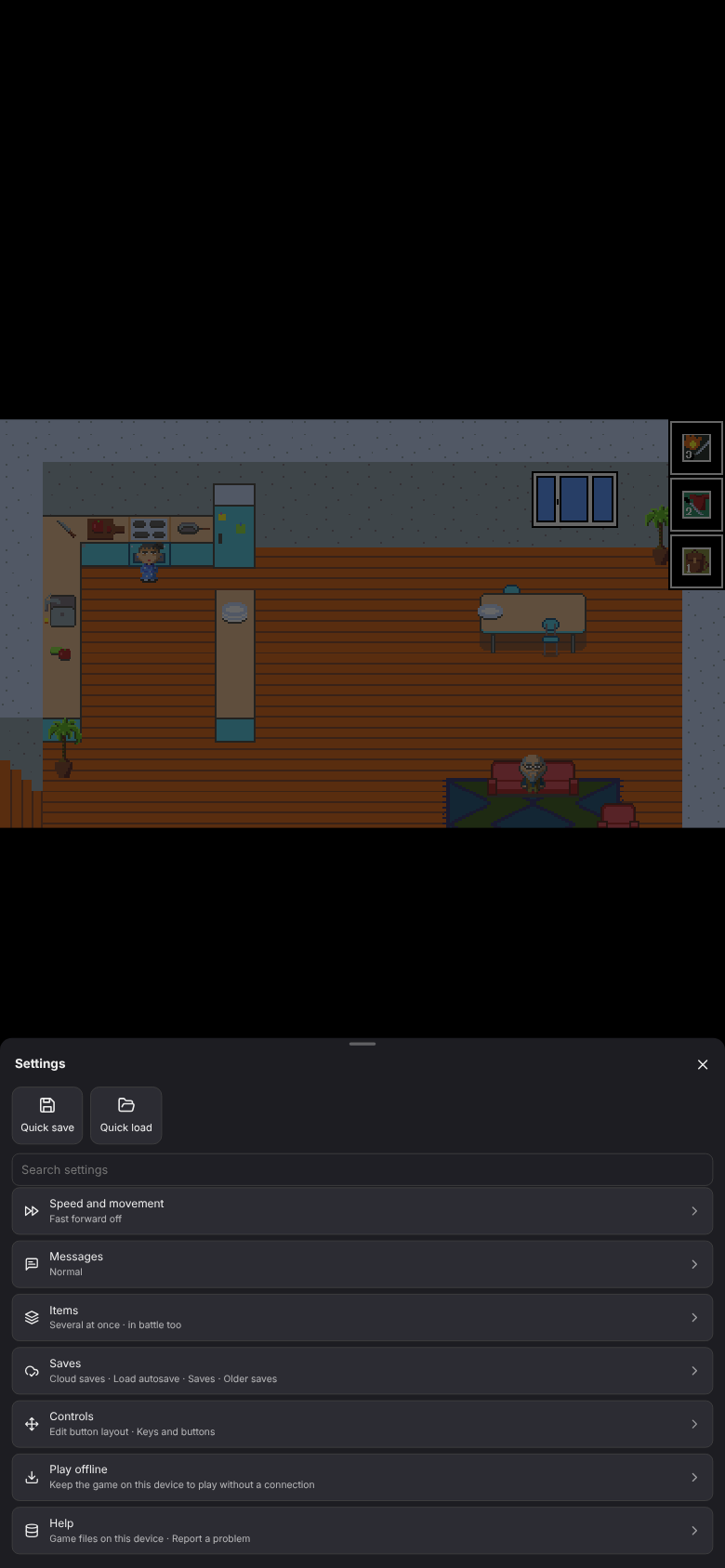
Every option of the toolkit is in the ⚙ Settings menu. Open it with ⚙ in the toolbar on a phone, with the faint ⚙ in the top-left corner on a PC, or with F1. The game pauses while it is open; the music keeps playing.
The first screen
At the top, tiles for what you use most: Quick save, Quick load and, on a PC, Full screen (a toolbar button on a phone). Below them, one row per group, with a line that says how it is set (for example Fast forward ×2 · Always dash). Tap a row to open its page. A group with a single setting shows that setting on the first screen instead.
| Group | What is inside | Guide |
|---|---|---|
| Speed and movement | Fast forward, Fast-forward speed, Always dash | Speed and movement |
| Messages | Messages (Normal / Auto / Skip), Auto speed, Messages log | Messages |
| Items | Use several items at once, … in battle, Give several items at once | Several items at once |
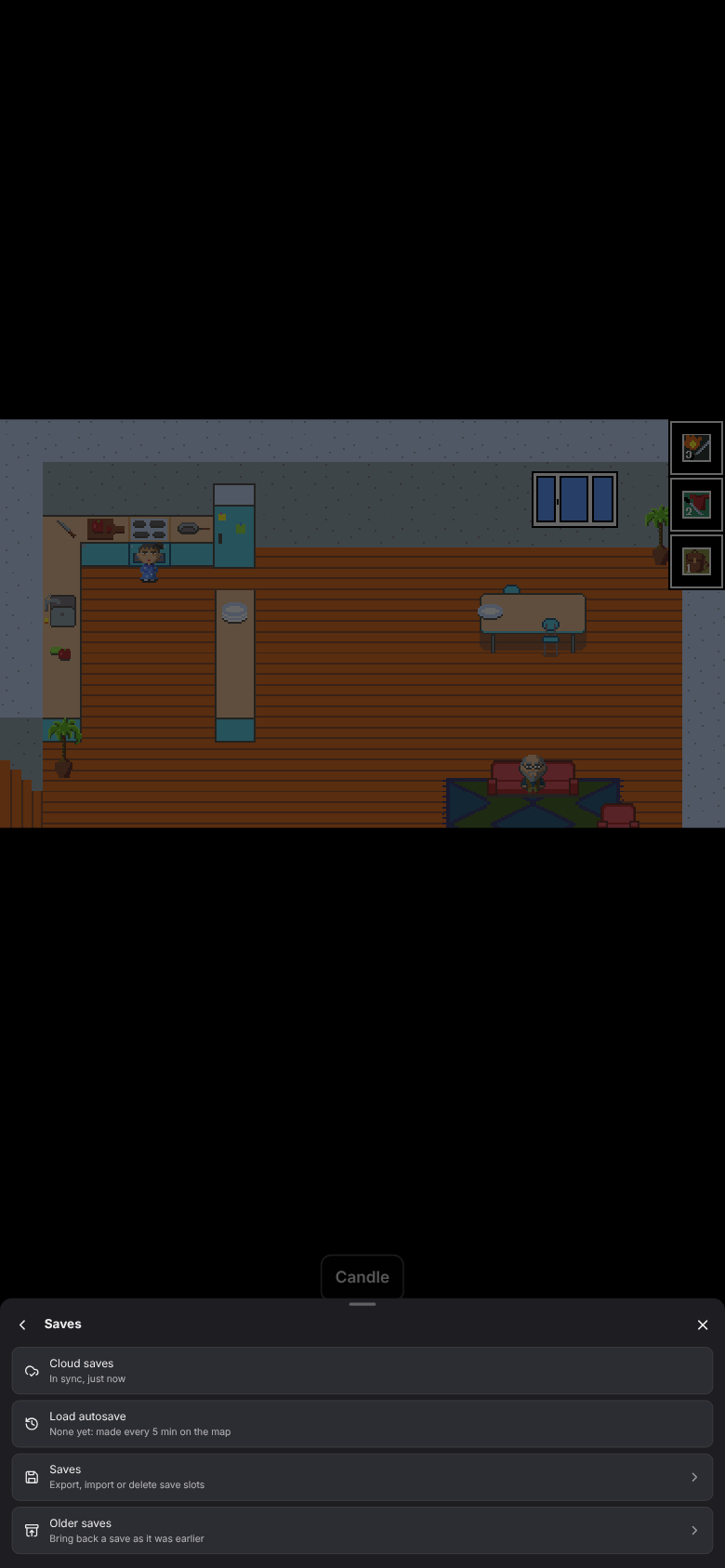
| Saves | Cloud saves, Load autosave, Older saves, Saves (export, import, delete) | Cloud saves, Quick save and autosave, Older saves, Save files |
| Cheats | Cheats, when turned on for you | Cheats |
| Controls | Edit button layout (phones), Keys and buttons | Touch controls, Keys and buttons |
| Display | Language, when the game has translations; Translate the game and Translate into, when live translation is turned on | Language, Live translation |
| Offline | Play offline | Play offline |
| Help | Report a problem, Game files on this device | Help |
A group appears only when it has something in it: options the person who set up the game, or the game's creator, turned off are missing, and so is a group left empty. Settings added by other plugins sit under More.
Kinds of rows
| Row | Use |
|---|---|
| Switch | Tap to turn on or off. The menu stays open |
| Choice (2 to 4 buttons side by side) | Tap one, or use ← / → on a keyboard. The menu stays open |
| Row with an arrow on the right | Opens a panel (Saves, Keys and buttons…) and closes the menu |
Search
When the menu has more than 15 settings, a search box sits above the groups. Type a few words: a setting matches when its name, its description or its group's name has every word, whatever the case or accents ("auto" finds Auto speed and Load autosave). Results are listed under their group's name.
Go back and close
| To | Do |
|---|---|
| Clear the search | Esc |
| Go back to the first screen | The back arrow at the top, Esc, or the phone's Back button |
| Close the menu | ✕, a tap outside it, Esc or Back on the first screen, or F1 |
On a keyboard, Tab moves through the rows and Enter picks one.