
Speed and movement
In the menu: ⚙ → Speed and movement → Fast forward, Fast-forward speed, Always dash. On a phone, ⏩ in the toolbar also turns fast forward on and off.
Fast forward
Speeds up the whole game ×2, ×3 or ×4: walking, battles, animations, text and cutscenes. Music and sound keep their normal speed.
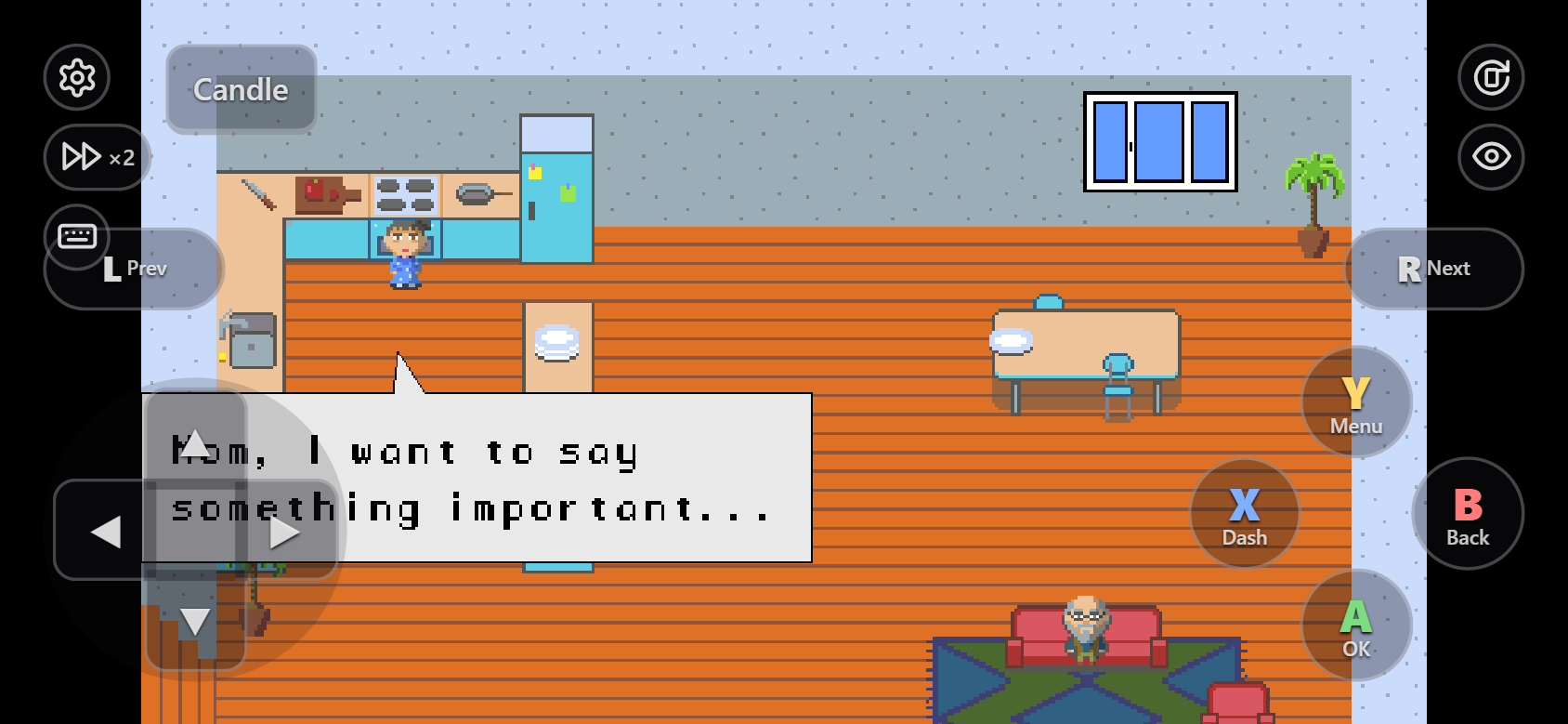
| On | Turn on / off | Only while held |
|---|---|---|
| Phone or tablet | Tap ⏩ in the toolbar (it lights up while on) | Hold ⏩ |
| PC | ` (the key left of 1) | Hold Tab |
| Anywhere | The Fast forward switch in the menu |
Pick ×2, ×3 or ×4 on the Fast-forward speed row. It is remembered in this browser; fast forward itself starts off each time.
The keys do nothing when one of the game's plugins already uses them. Fast forward stops while the ⚙ menu is open. The person who set up the game can turn it off, keep it out of battles, cap the speed or fix it (then there is no speed to pick), and the game's creator can turn it off.
Always dash
Turn on ⚙ → Speed and movement → Always dash to run everywhere without holding a button. Hold Dash on the on-screen gamepad (Shift on a keyboard) to walk instead. Turn the switch off to stop.
It is the game's own Always Dash setting, so it also shows in the game's Options menu (when the game has one) and it follows your saves to your other devices.
Some maps do not allow running at all, as in the desktop game; the menu says so. Some sites have this switch turned off by the person who set up the game or by the game's creator, or keep running always on.